
How to Bookmark Your Website Login Page in Google Chrome
To make accessing your website quicker and easier, we recommend bookmarking your website's login page in Google Chrome. This saves you from having to type the login URL every time you need to sign in.
Step 1: Open Your Website Login Page
Open Google Chrome and navigate to your website's login page.
Example: yourwebsite.com/login
Step 2: Open the Chrome Menu
In the upper-right corner of Google Chrome, click the three vertical dots (⋮) to open the Chrome menu.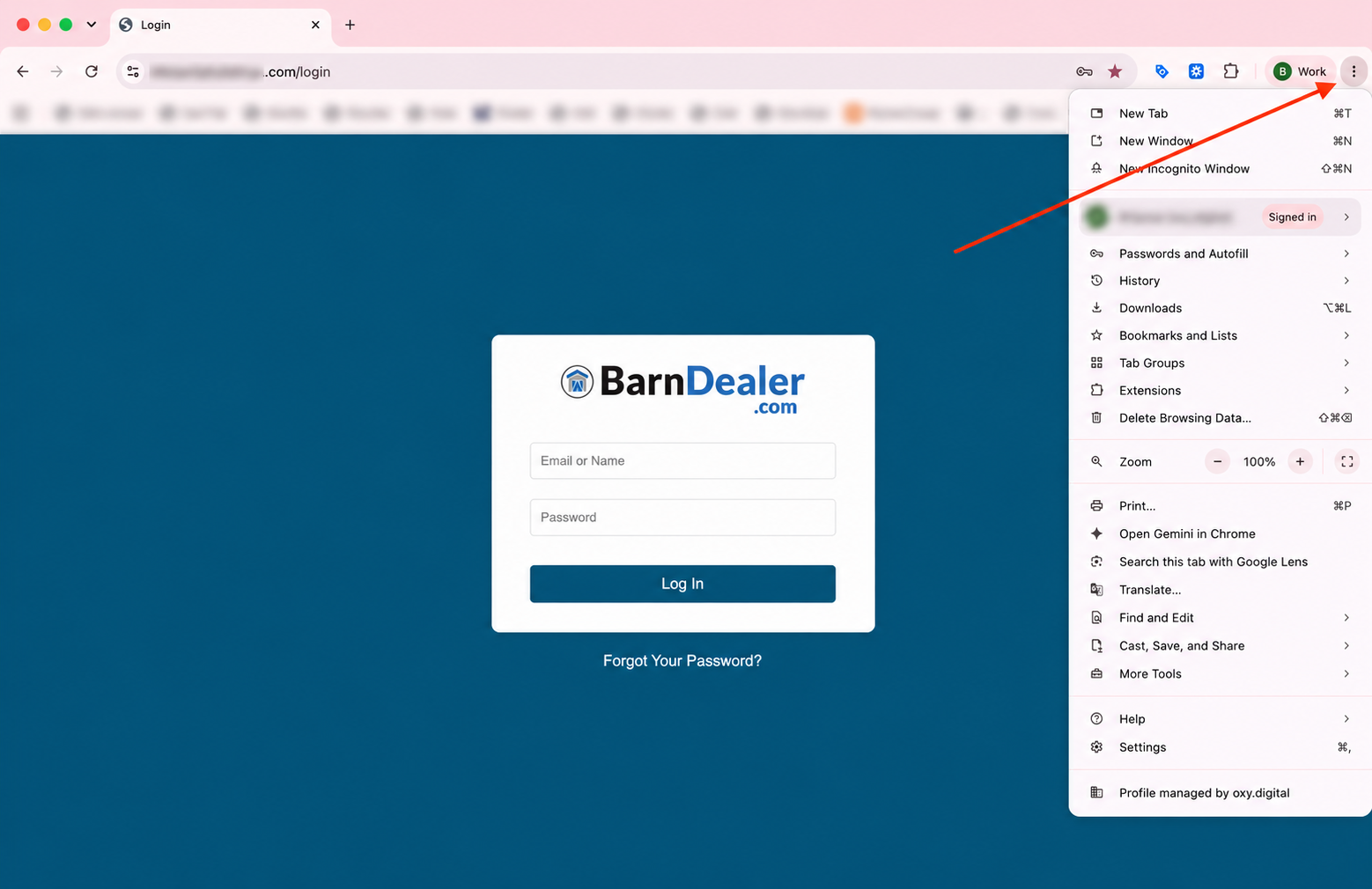
Step 3: Save the Page as a Bookmark
From the menu:
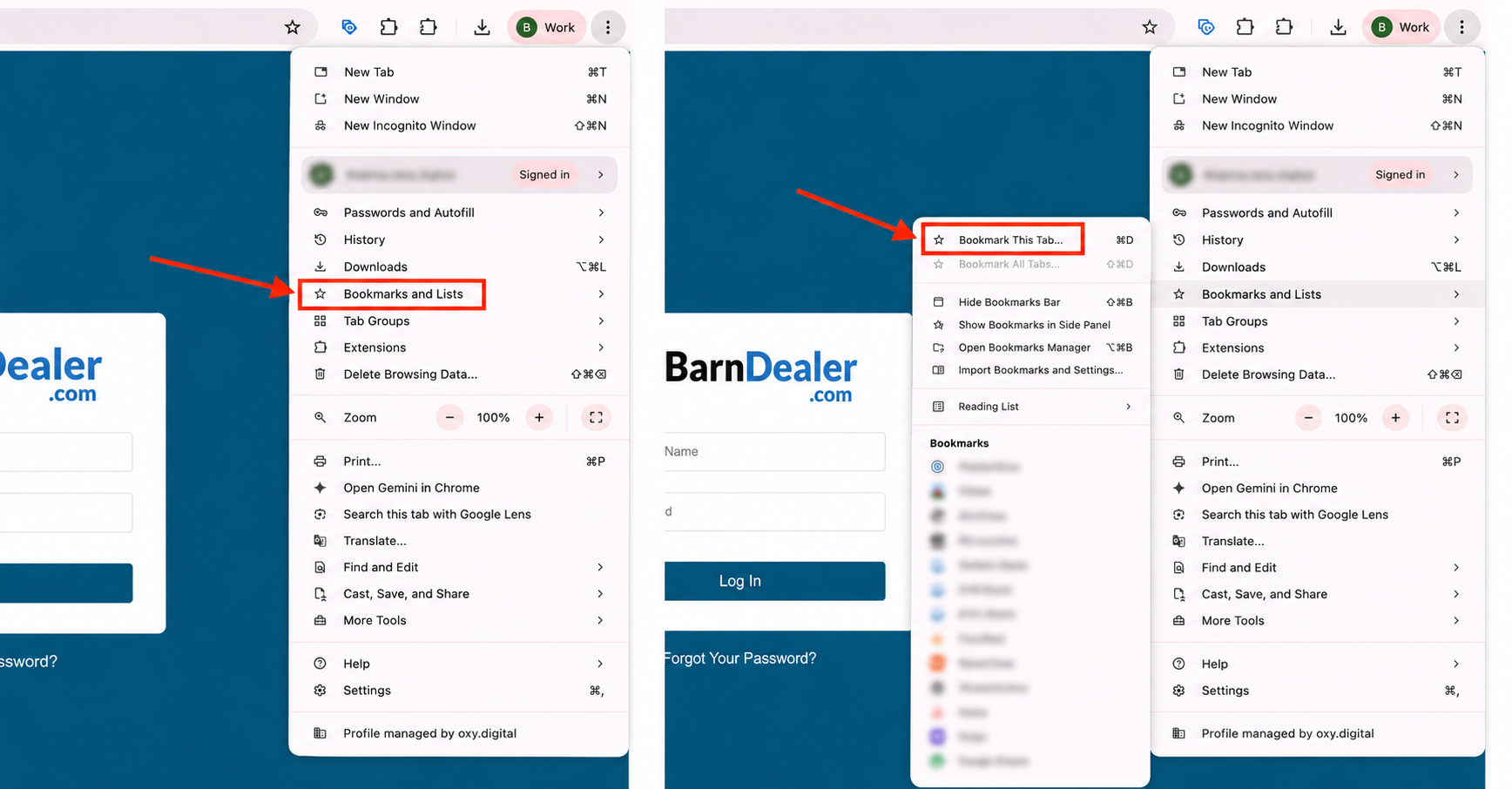
Hover over or click Bookmarks and Lists.
Select Bookmark this Tab.
Step 4: Name Your Bookmark
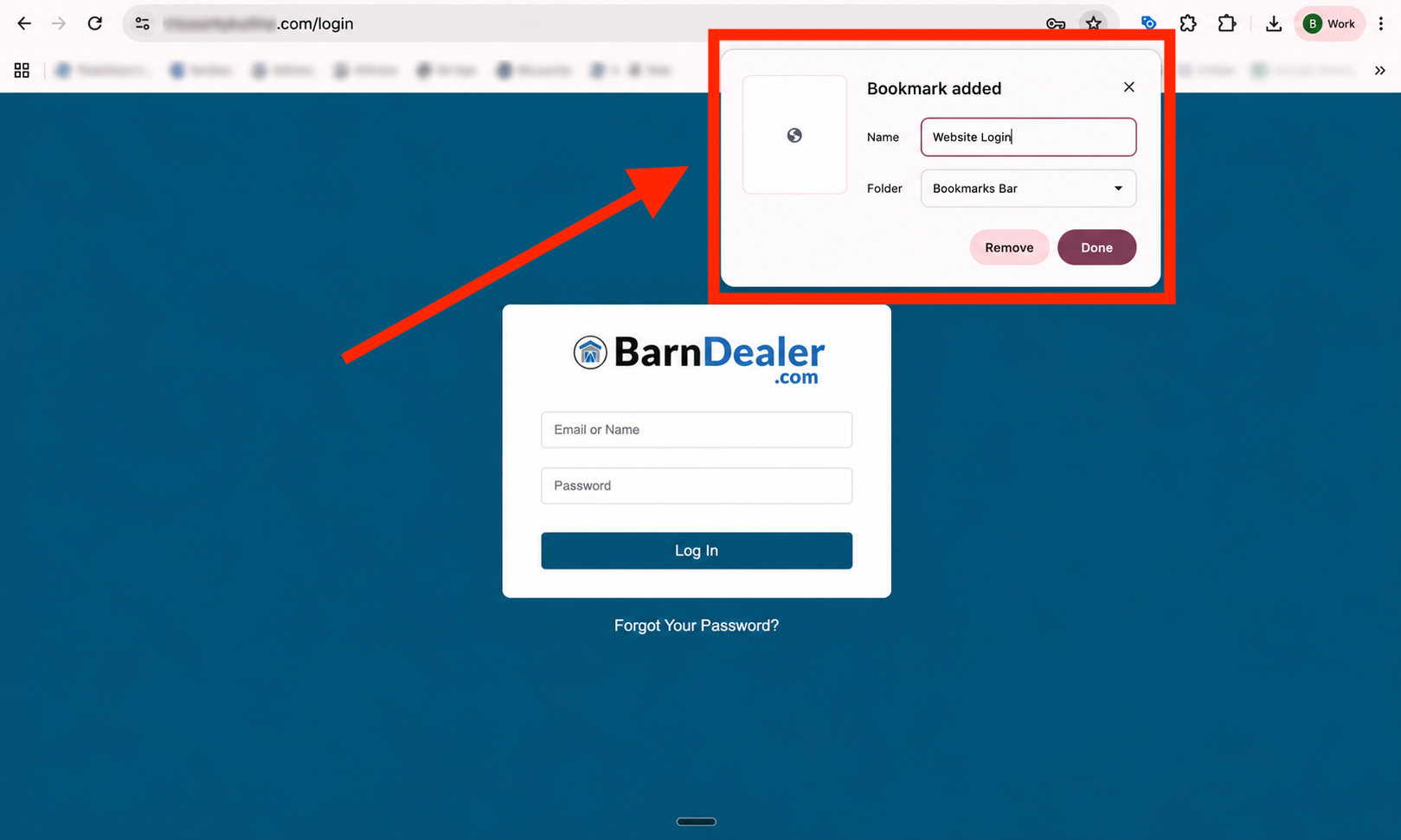
A small window will appear.
Rename the bookmark to something easy to recognize, such as Website Login, Dealer Portal, or your business name.
We recommend saving it to the Bookmarks Bar for quick access.
Click Done.
Step 5: Access Your Login Page
The next time you need to log in, simply click the bookmark instead of typing the website address.
If you saved it to your Bookmarks Bar, it will appear just below the address bar for one-click access.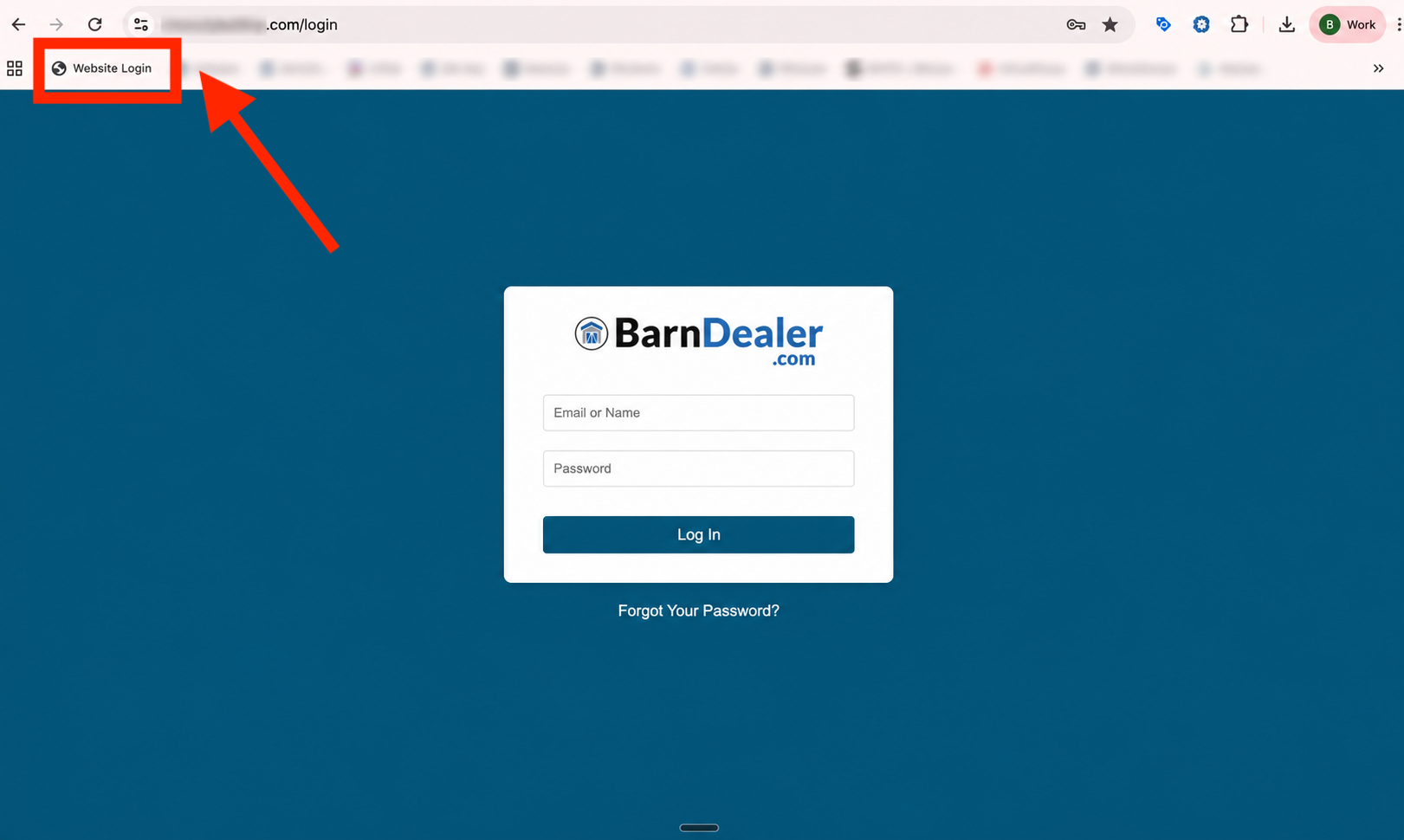
If You Don't See the Bookmarks Bar
If your Bookmarks Bar isn't visible:
Click the three vertical dots (⋮) in the upper-right corner of Chrome.
Select Bookmarks and Lists.
Click Show Bookmarks Bar.
Your Bookmarks Bar will now appear beneath the address bar.
Helpful Tip
We recommend bookmarking your login page as soon as your website is launched. It's a quick, one-time setup that makes signing in much faster and helps prevent typing errors when accessing your website.